Introduction
In my home network, I use Ruckus/Brocade switches running the FastIron OS. I currently have an ICX 7150 and an ICX 6430, each running different versions of FastIron.
I constantly find myself re-learning that on older versions of FastIron, configuring a port to pass both untagged and tagged traffic works differently than it does on newer releases.
I’m posting this primarily as a clean reference for myself, but hopefully it helps someone else too. In this post, I’ll show how to pass multiple VLANs over a single link on an ICX 6430 running FastIron 08.0.30s.
Table of Contents
How Trunking Works on FastIron
On Ruckus/Brocade switches, newer versions of FastIron (08.0.80 and later) allow you to configure both tagged and untagged VLANs directly on a single interface.
On older versions of FastIron, attempting to configure a VLAN as untagged and another VLAN as tagged on the same interface results in an error:
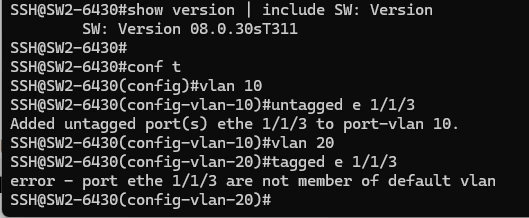
To pass both untagged and tagged traffic on a single interface, you must use the dual-mode command. The official documentation covering this behavior can be found here:
Configuration
In my network, I needed to connect an access point to an ICX 6430 switch. VLAN 20 is configured as the untagged VLAN so the access point can obtain an IP address on my management subnet.
Wireless clients, on the other hand, are bridged to my Trusted network on VLAN 10. Below are the commands I used to configure this:
conf t
vlan 10
tagged ethernet 1/1/4
vlan 20
tagged ethernet 1/1/4
interface ethernet 1/1/4
dual-mode 20
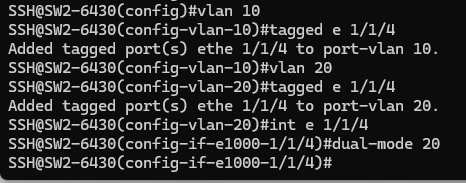
If you do not specify a VLAN ID after the dual-mode command, the default VLAN will be used for untagged traffic. On my switch, VLAN 1 is the default VLAN.